
An input device is any hardware device that sends data to a computer, allowing you to interact with and control the computer.
The most commonly used or primary input devices on a computer are the keyboard and mouse.
Types of Input Devices:
1)Keyboard:


4)Barcode Reader:



11)OCR:
Optical character recognition (optical character reader, OCR) is the mechanical or electronic conversion of images of typed, handwritten or printed text into machine-encoded text, whether from a scanned document, a photo of a document, a scene-photo (for example the text on signs and billboards in a landscape photo) or from subtitle text superimposed on an image (for example from a television broadcast).[1] It is widely used as a form of information entry from printed paper data records, whether passport documents, invoices, bank statements, computerised receipts, business cards, mail, printouts of static-data, or any suitable documentation.


The most commonly used or primary input devices on a computer are the keyboard and mouse.
Types of Input Devices:
1)Keyboard:
Keyboard is the most common and very popular input device which helps in inputting data to the computer. The layout of the keyboard is like that of traditional typewriter, although there are some additional keys provided for performing additional functions.Keyboards are of two sizes 84 keys or 101/102 keys, but now keyboards with 104 keys or 108 keys are also available for Windows and Internet.

2)Mouse:
Mouse is most popular pointing device. It is a very famous cursor-control device having a small palm size box with a round ball at its base which senses the movement of mouse and sends corresponding signals to CPU when the mouse buttons are pressed.
Invented by Douglas Engelbart in 1963 while working at Xerox PARC.

3)Audio Conversion Devices:
There are different types of audio conversion devices available, but they each perform relatively the same function. They are designed to convert audio of various formats into a digital format for use on a computer. The most common types of audio conversion devices include cassette tape to MP3, LP record to MP3 and audio CD to MP3.

4)Barcode Reader:
A barcode reader (or barcode scanner) is an electronic device that can read and output printed barcodes to a computer. Like a flatbed scanner, it consists of a light source, a lens and a light sensor translating optical impulses into electrical ones. Additionally, nearly all barcode readers contain decoder circuitry analyzing the barcode's image data provided by the sensor and sending the barcode's content to the scanner's output port.
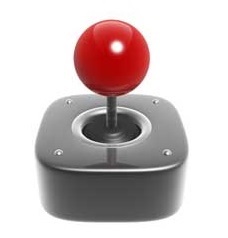
5) Joystick
Joystick is also a pointing device which is used to move cursor position on a monitor screen. It is a stick having a spherical ball at its both lower and upper ends. The lower spherical ball moves in a socket. The joystick can be moved in all four directions.
The function of joystick is similar to that of a mouse. It is mainly used in Computer Aided Designing(CAD) and playing computer games.
6)Scanner
A scanner or optical scanner is a hardware input device for a computer. Scanners allow a user to take a printed picture, drawing, or document (hard copy) and convert it into a digital file (either an image or a text file) so that it can stored, viewed, and edited on a computer.
Types of Scanner:
1)Flatbed Scanner
2)Photo Scanner
3)Sheetfed Scanner
4)Portable Scanner

7)Digitizer
A digitizer tablet (also known as a digitizer or graphics tablet) is a tool used to convert hand-drawn images into a format suitable for computer processing. Images are usually drawn onto a flat surface with a stylus and then appear on a computer monitor or screen.

8)Microphone:
A microphone, colloquially nicknamed mic or mike is a transducer that converts sound into an electrical signal.
Microphones are used in many applications such as telephones, hearing aids, public address systems for concert halls and public events, motion picture production, live and recorded audio engineering, two-way radios, megaphones, radio and television broadcasting, and in computers for recording voice, speech recognition, VoIP, and for non-acoustic purposes such as ultrasonic checking or knock sensors.

9)MICR:
Magnetic ink character recognition code (MICR Code) is a character-recognition technology used mainly by the banking industry to ease the processing and clearance of cheques and other documents. The MICR encoding, called the MICR line, is at the bottom of cheques and other vouchers and typically includes the document-type indicator, bank code, bank account number, cheque number, cheque amount, and a control indicator. The technology allows MICR readers to scan and read the information directly into a data-collection device.

Optical character recognition (optical character reader, OCR) is the mechanical or electronic conversion of images of typed, handwritten or printed text into machine-encoded text, whether from a scanned document, a photo of a document, a scene-photo (for example the text on signs and billboards in a landscape photo) or from subtitle text superimposed on an image (for example from a television broadcast).[1] It is widely used as a form of information entry from printed paper data records, whether passport documents, invoices, bank statements, computerised receipts, business cards, mail, printouts of static-data, or any suitable documentation.

12)OMR:
Optical mark recognition (also called optical mark reading and OMR) is the process of capturing human-marked data from document forms such as surveys and tests.

13)Light Pen:
Light pen is a pointing device which is similar to a pen. It is used to select a displayed menu item or draw pictures on the monitor screen. It consists of a photocell and an optical system placed in a small tube. When the tip of a light pen is moved over the monitor screen and pen button is pressed, its photocell sensing element detects the screen location and sends the corresponding signal to the CPU.

14)Digital Camera:
A digital camera is a camera (hardware input device) that stores the pictures and video it takes in electronic format instead of to film.

15)Some other input devices:
a)Punch Card Reader
b)Yoke
c)Biometric(Finger Print Scanner)
d)Touchscreen
